Your dashboard homepage
On the dashboard, multiple statistics are shown. This page will explain what these statistics say about you consent rate.
Last updated 21 days ago
How to interpret the Consent Studio Web CMP Dashboard
Where can the dashboard be found?
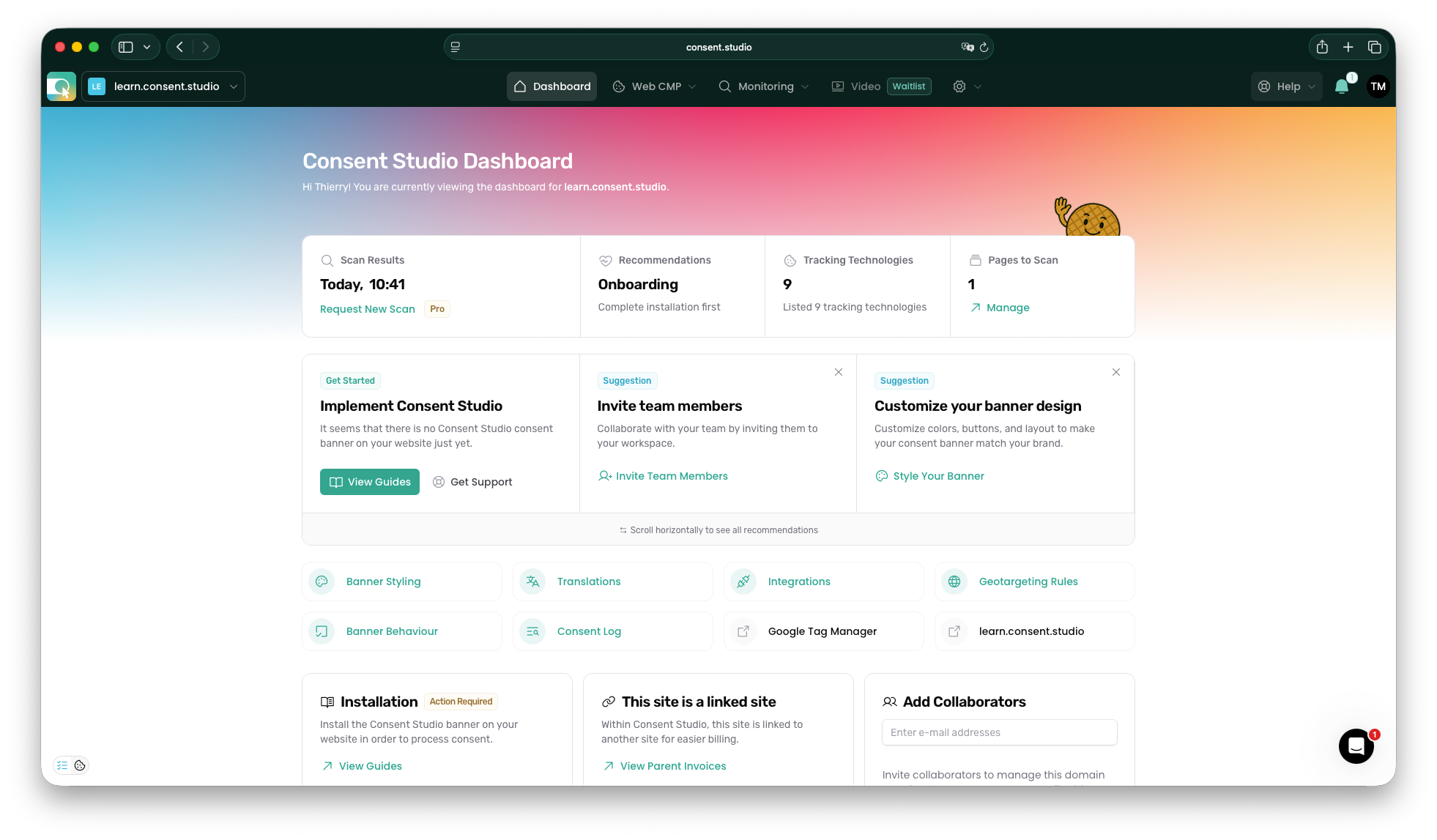
When logged into your Consent Studio account, the dashboard will show under Home. It is the first screen that you will see.
Section: Monitoring
1. Scan Context
The monitoring sections are at the top of the dashboard. The first one shows you the context of the last monitoring scan of your website.

It shows you when the last scan has taken place, if there are recommendations that require your attention, how many tracking technologies we have discovered and how many pages were scanned.
2. Recommendations
The second section show you the recommendations that are currently active for your domain. These can be generic onboarding recommendations, recommendations to make your consent banner as complete as possible, but also to help you resolve urgent and/or critical compliance issues on your website.
Learn more about recommendations in this article.
Section: Statistics Summary
The Statistics Summary provides you an overview of the latest numbers around consent decisions.

Generally, consent for the Functional category is 100% because we do not allow it to be untoggled in the Web CMP consent banner.
How often is the banner ignored?
You can work this out from the Statistics Summary. Open the This Month or Last Month tab. The All Consent Actions tile shows how many consent choices visitors made in that calendar month, and the line below the number shows the banner displays for the same month.
Subtract the consent actions from the banner displays: banner displays - all consent actions = banner displays without a choice. Divide that by the banner displays and multiply by 100 to get a percentage.
For example: 10000 banner displays and 7000 consent actions means about 3000 displays without a choice, so the banner was ignored about 30% of the time.
Treat this as an estimate. A banner display is counted every time the banner appears, so a visitor who browses several pages without choosing counts more than once. All Consent Actions also includes visitors who change an earlier choice. Known bots are not counted.
Section: Quick Links
These are designed to provide you with quick access to the more popular areas of the Consent Studio dashboard.

Block: Add Collaborators
By entering your colleagues' e-mail addresses, you can quickly invite them on the spot.
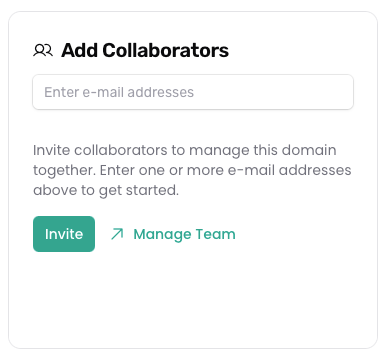
If you would like to learn more about inviting collaborators and access management, please refer to this article.
Was this helpful?
Still need help? Ask the team