How to configure HTTP Consent Cookies (CDN)
Configure our unique HTTP Consent Cookies feature with Cloudflare
Last updated 9 days ago
Ensure long-lived consent storage via the Consent Studio CMP HTTP Consent Cookies feature
Consent Studio sets cookies to store a cached version of a user's consent state and their Consent ID.
What are HTTP Consent Cookies?
It's a feature exclusive to Consent Studio Web CMP that makes a visitor's consent choice "stick" for longer, especially in browsers with aggressive tracking prevention.
Normally the consent banner stores its state (which categories were accepted, the consent ID, and the timestamp) in cookies written by JavaScript in the browser. Browsers increasingly cap JavaScript-written cookies to a short lifetime (often 7 days), so returning visitors get re-prompted sooner than they should.
HTTP Consent Cookies move that job to the server. Instead of the banner's JavaScript writing the cookies, the consent endpoint sets them through the HTTP response (Set-Cookie) with a 1 year lifetime. Because they are delivered first-party from the visitor's own domain, browsers treat them as long-lived rather than short-lived tracking cookies, so the consent decision survives much longer and visitors are re-asked far less often.
It's delivered one of two ways so the endpoint runs on the customer's own domain:
CNAME (
consent.yourdomain.compointing at Consent Studio), orCDN Worker that proxies
yourdomain.com/consent-studio/sscto Consent Studio.
The three cookies it manages are consent-studio__storage (the accepted categories), consent-studio__consent-id (the consent record ID), and consent-studio__consent-timestamp. This makes sure that visitors get presented less consent banners.
How to configure
How to configure HTTP Consent Cookies in Cloudflare
You can start in the Consent Studio dashboard: go to Web CMP > Enhancements > HTTP Cookies and click Launch Setup Wizard. The wizard's Worker Setup step summarises the Cloudflare steps below and links back to this guide (View Full Guide). Complete the Cloudflare steps first, then finish the wizard as described in Instructing Consent Studio to use the CDN Worker.
Prerequisites
We will work with a Cloudflare Worker. This requires the following conditions to be met beforehand.
You must have Cloudflare set-up as the nameserver for your domain
You must have proxy mode enabled in Cloudflare for the domain that corresponds with your Consent Studio property ("site")
Your Consent Studio plan must include HTTP Consent Cookies (the HTTP Cookies menu item is marked Pro).
Your Consent Studio site must be a top-level domain. HTTP Consent Cookies can't be enabled for subdomains.
Registering the Cloudflare Worker
1. Open the Cloudflare dashboard by going to https://dash.cloudflare.com.
2. Make sure that you are within the target workspace
3. Navigate to Workers & Pages in the Compute (Workers) section of the navigation panel on the left hand side.

4. Select the Hello World template.
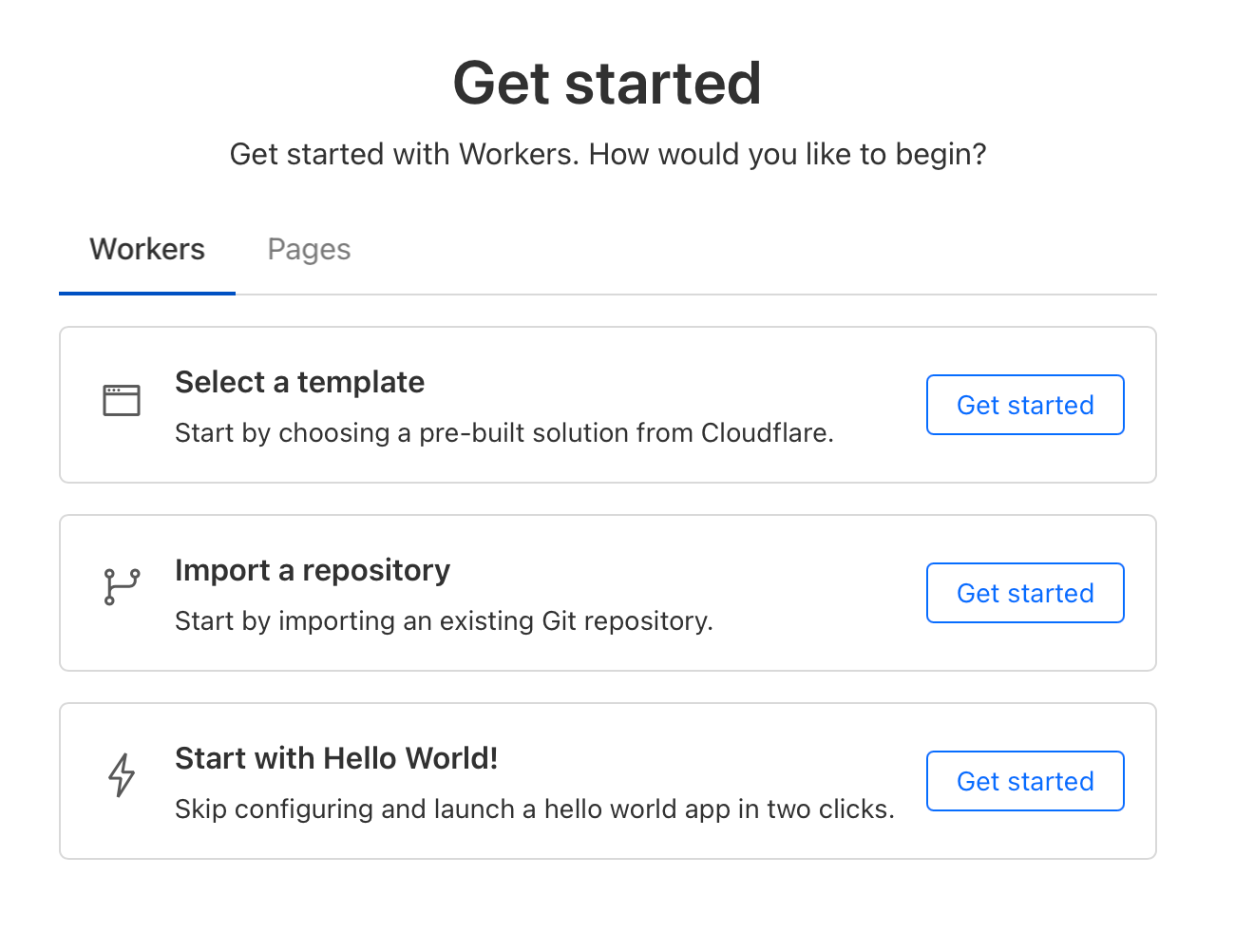
5. You will now get a success notification. Click the Edit code button in the top right corner.

6. In the code tab for the worker.js file, replace the code with our Cloudflare Worker script from GitHub (Get Worker Code in the setup wizard opens the same file): https://github.com/vallonic/consent-studio-cloudflare-worker.
7. Press Deploy in the top right corner. Your worker is now available to connect to a domain/route.
Connecting a route to the worker
1. Go to Account home to see all your domains within your workspace. Select the domain that you want to install the worker on.
2. Within the context of a domain, click Workers Routes in the navigation column on the left.
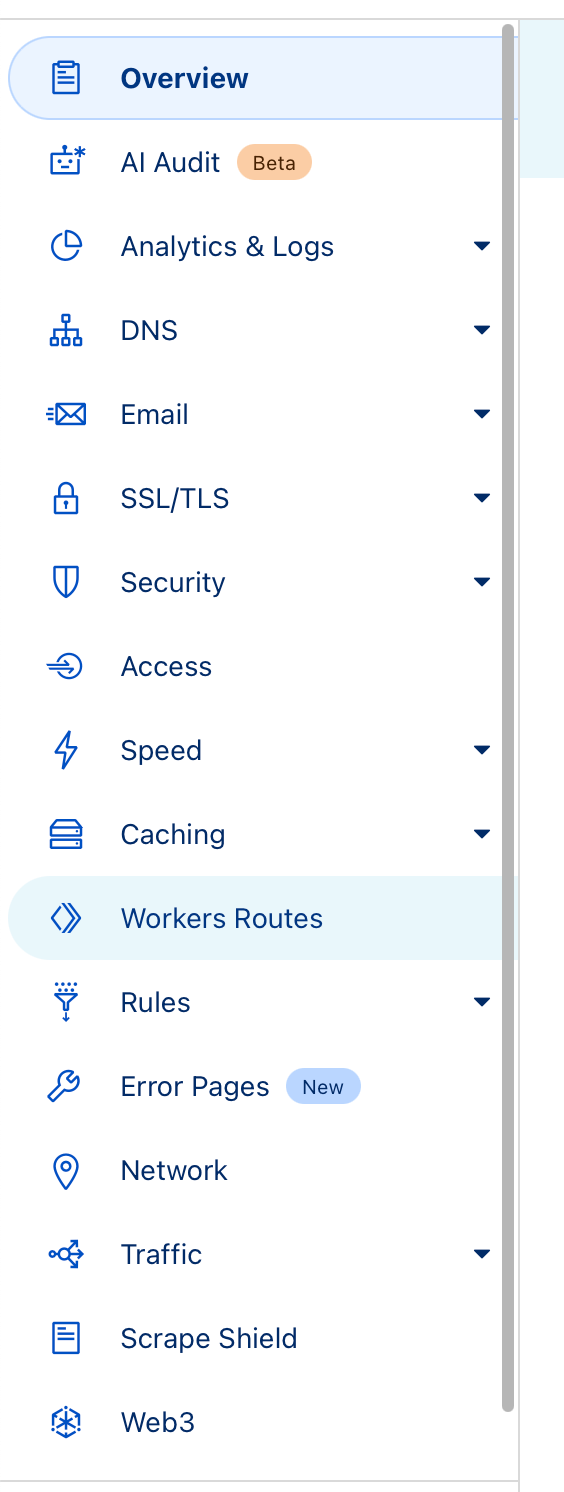
3. Click Add route in the HTTP Routes section.

4. In the modal, use the following pattern for the route value:
[your domain here]/consent-studio/ssc*Examples:
consent.studio/consent-studio/ssc*
vallonic.com/consent-studio/ssc*
5. In the modal, select the Worker that you registered in Registering the Cloudflare Worker above.
6. In the modal, click Save
Instructing Consent Studio to use the CDN Worker
1. In the Consent Studio dashboard, go to Web CMP > Enhancements > HTTP Cookies. This opens the HTTP Consent Cookies page.
2. Click Launch Setup Wizard. This opens the HTTP Consent Cookies Setup Wizard.
3. In the Routing step, check that you see "Your site is eligible for HTTP Consent Cookies!". Under Setup Method, select CDN Worker (Recommended) and click Next.
4. The Worker Setup step shows the route for your domain (yourdomain.com/consent-studio/ssc*). Once your worker is deployed and the route is saved in Cloudflare, click Test Worker. Consent Studio checks your worker from its servers; this takes a few seconds.
5. Check the result shown under the button:
Worker is working: your worker forwards consent requests to Consent Studio.
Worker not found: the address returns 404 Not Found. Check that the worker is deployed and that its route covers
yourdomain.com/consent-studio/ssc*.Worker not reached: the address answers, but not with a response from Consent Studio. Check that the worker route covers
yourdomain.com/consent-studio/ssc*.Worker forwards the wrong domain: the worker forwards to Consent Studio, but not for this domain. Check that the route is set on the same domain your banner is installed on.
Worker could not be confirmed: the check was inconclusive, for example because of bot protection on your site. You can continue; your next scan checks it again from a browser.
6. Click Next. If there is no recent test result, the wizard starts a test first; click Next again once it is done. You can't continue while the result is Worker not found, Worker not reached or Worker forwards the wrong domain. When you continue, HTTP Consent Cookies via a CDN Worker are switched on.
7. In the Verify step, follow the Testing Checklist: visit your website and accept cookies, open your browser's DevTools and check the Network tab, verify the requests to yourdomain.com/consent-studio/ssc, and check that the HTTP cookies are set with a longer lifetime. Then click Finish Setup.
8. Go back to Web CMP > Enhancements > HTTP Cookies. The page shows HTTP Consent Cookies are active, and under Via CDN Worker the Enable HTTP Consent Cookies via a CDN Worker toggle is on. You can click Test Worker here at any time. If you change anything on this page, click Save & Publish.
When Enable HTTP Consent Cookies via a CDN Worker is on but the worker isn't set up properly, newly given consent is not registered in your consent log and HTTP Consent Cookies are not set.
Always click Test Worker right after a change. If Consent Studio Monitoring shows the recommendation "HTTP Consent Cookies are not reaching Consent Studio", follow that article to fix the worker or switch the setting off.
Known limitations
Safari limits CNAME-delivered HTTP Consent Cookies to 7 days
HTTP Consent Cookies can be delivered in two ways: through a CNAME record (for example consent.yourdomain.com) or through a CDN Worker running on your own domain.
When the CNAME method is used, Safari applies its tracking-prevention rules to the consent subdomain and shortens the lifetime of the cookies set through it to 7 days. This is enforced by Safari itself: the cookies are still sent with their full 1 year lifetime, and other browsers such as Chrome and Firefox keep them for the full year. Only Safari (and other WebKit-based browsers on iOS) applies the 7 day limit.
Because the limit comes from Safari, it cannot be changed from the consent banner or from your Consent Studio settings. To keep the full 1 year lifetime in Safari as well, use the CDN Worker method: it serves the cookies from your own domain, so Safari does not treat them as third-party and does not shorten them. The Worker method requires that your platform lets you run a CDN worker on your domain. Some hosted platforms (for example Shopify) do not allow this, and on those platforms the CNAME method stays subject to Safari's 7 day limit.
In other words: the CDN Worker method is the preferred method.
Was this helpful?
Still need help? Ask the team