OpenAI Pixel Consent API x Consent Studio CMP
Apply your visitors' marketing consent to the OpenAI (ChatGPT Ads) Measurement Pixel
Last updated About 1 month ago
Overview
Consent Studio has a built-in integration for the OpenAI Pixel, also known as the ChatGPT Ads Measurement Pixel. Once enabled, the pixel follows the choice your visitor makes in the consent banner: measurement is allowed when marketing consent is granted, and stopped when it is denied or withdrawn.
One thing sets this pixel apart from most others. The OpenAI Pixel grants consent to itself by default. In OpenAI's own words, it "initializes consent to true by default unless you set it to false or the Pixel finds a stored denial". Leaving it alone is therefore not a neutral starting position, it is an opt-out one. That is what this integration is here to fix, and it is why there is a second step below for sites that do not use Consent Studio Launcher.
Before you start
The OpenAI Pixel should already be installed on your site, or ready to install.
You need your Pixel ID, which you will find in the ChatGPT Ads dashboard under your pixel settings.
Step 1: Enable the integration
Open the Consent Studio dashboard and select the domain you want to configure.
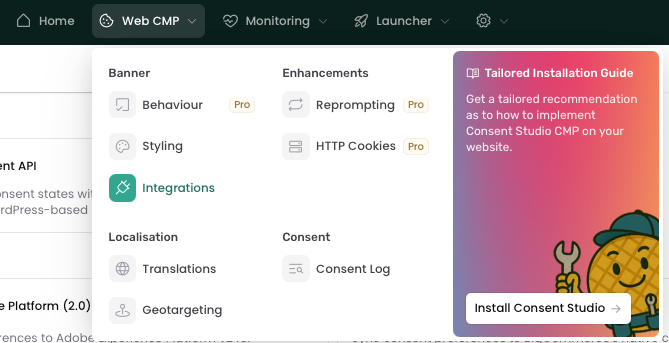
Go to Web CMP and click Integrations under Banner.
Find OpenAI Pixel Consent API under Available Integrations. The search bar at the top of the panel helps if the list is long.
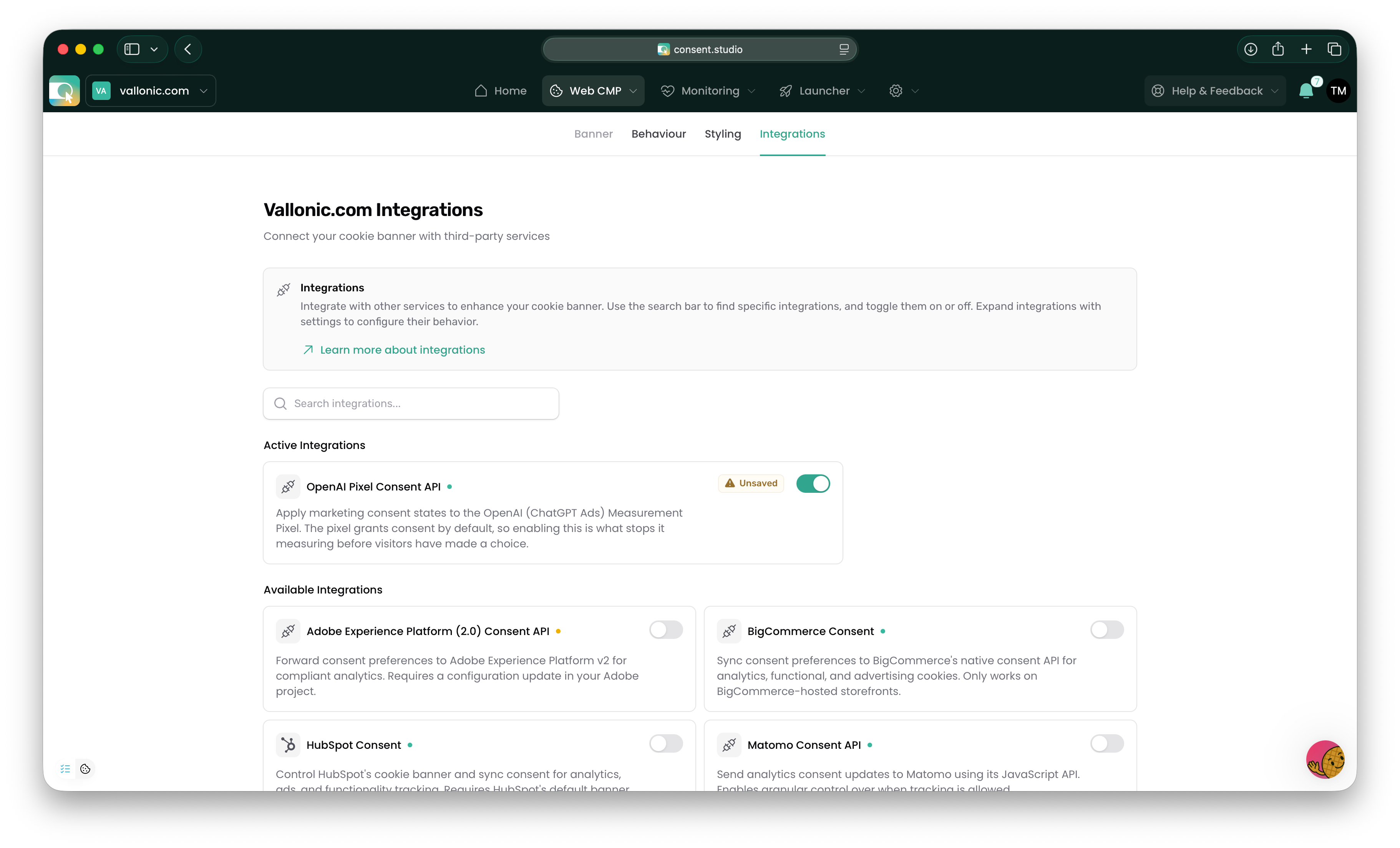
Toggle it on. It moves up to Active Integrations.
Click Save & Publish at the bottom of the page.
Step 2: Make sure consent is revoked before the pixel starts
Because the pixel assumes consent until it is told otherwise, the instruction to withhold consent has to reach it just as early as the pixel itself starts. How you arrange that depends on how the pixel is installed.
If you installed the pixel with Consent Studio Launcher
There is nothing to do. The OpenAI Pixel tag adds the revoke to your pixel code automatically, as soon as the OpenAI Pixel Consent API integration is enabled.
You can also switch the integration on from the tag itself. Open Launcher, go to Tags, open your OpenAI Pixel tag and use the OpenAI Pixel Consent API toggle in the consent section. Enabling it there sets the tag's Consent Check to defer, which records that consent is handled by the integration rather than by a Launcher condition.
If you installed the pixel manually or through Google Tag Manager
Add one line to your pixel code, oaiq("consent", false);, between the loader block and the oaiq("init", ...) call:
<script>
  (function (w, d, s, u) {
    if (w.oaiq) return;
    var q = function () { q.q.push(arguments); };
    q.q = [];
    w.oaiq = q;
    var js = d.createElement(s);
    js.async = true;
    js.src = u;
    var f = d.getElementsByTagName(s)[0];
    f.parentNode.insertBefore(js, f);
  })(window, document, "script", "https://bzrcdn.openai.com/sdk/oaiq.min.js");

  oaiq("consent", false);

  oaiq("init", {
    pixelId: "<YOUR-PIXEL-ID>",
  });
</script>
The position matters. Placed above the loader block the line does not work, because oaiq does not exist yet at that point. Placed after the loader block and before init, it is queued and applied in the right order the moment the pixel loads.
Consent Studio takes over from there, granting and revoking consent as your visitor makes and changes their choice.
How consent is applied
Marketing consent granted: Consent Studio runs
oaiq("consent", true).Marketing consent denied or withdrawn: Consent Studio runs
oaiq("consent", false).No choice made yet: Consent Studio runs
oaiq("consent", false), so a first-time visitor is not measured while the banner is still on screen.
Only the Marketing category is connected. The OpenAI Pixel is advertising measurement, so an analytics or functional choice does not affect it.
Worth knowing: events the pixel holds back while consent is denied are not sent afterwards if consent is granted later. OpenAI does not replay blocked events. That is the correct behaviour for consent, and it does mean a visitor who accepts halfway through a visit is only measured from that moment on.
Check that it is working
Open your site in a fresh browser session, so the banner appears.
Open your browser's developer tools and go to the Network tab.
Before you make a choice, and after you decline, there should be no requests to
bzr.openai.com.Accept marketing, and the requests appear.
If you have debug: true set in your Consent Studio installation snippet, the browser console also shows:
[Consent Studio] OpenAI Pixel Consent API integration is active If you instead see a warning that the OpenAI Pixel is not defined, the banner could not reach the pixel. Usually the base code is missing on that page, or it loads later than the consent banner. Check that the pixel code is present and that Step 2 has been applied.
Good to know
The pixel file still loads before a choice is made
With the integration enabled, the pixel loads on every page and simply measures nothing until marketing consent is granted. That keeps consent changes instant, with no page reload needed.
If you would rather the pixel did not load at all before consent, install it through Launcher, leave the OpenAI Pixel Consent API integration off, and set the tag's Consent Check to require the Marketing category instead. The trade-off is that the pixel then starts on the next page view after consent, rather than immediately.
Content Security Policy
If your site uses a Content Security Policy, allow https://bzrcdn.openai.com for scripts and https://bzr.openai.com for connections. Without this the browser blocks the pixel. See About built-in integrations for more on integrations and CSP.
What appears in your declaration
Consent Studio recognises the OpenAI Pixel, so its tracking technologies are declared for you under the Marketing category, grouped as OpenAI Pixel: the script on bzrcdn.openai.com, the measurement endpoint on bzr.openai.com, and the __oppref cookie that records which ChatGPT advert or link a visitor arrived from.
Measuring conversions
To send measurement events such as order_created or lead_created, use the OpenAI Pixel Event template in Launcher, under Launcher > Templates.
Still need help? Ask the team