Accessibility: how the escape key works
Details about escape key behaviour in the Consent Studio CMP banners.
Last updated About 1 month ago
Escape Key Behaviour in Consent Studio CMP
The Escape key on the consent banner behaves differently depending on context.
The main consent banner can be opened or closed;
The tracking technology overview can be opened or closed;
Consent is already provided or not yet.
The role of the escape key is independent of the optional close button that can be enabled for your consent banner.
Scenario: the tracking technology overview is open
Pressing Escape closes the overview and returns the user to the main consent banner. Nothing is saved.
Scenario: the banner was re-opened (consent was already given)
Pressing Escape simply closes the banner. The user's existing consent remains unchanged.
Scenario: the banner is shown for the first time
Pressing Escape performs the action configured under Escape Key Action (On Initial Display) in the Accessibility settings in the Consent Studio Dashboard.
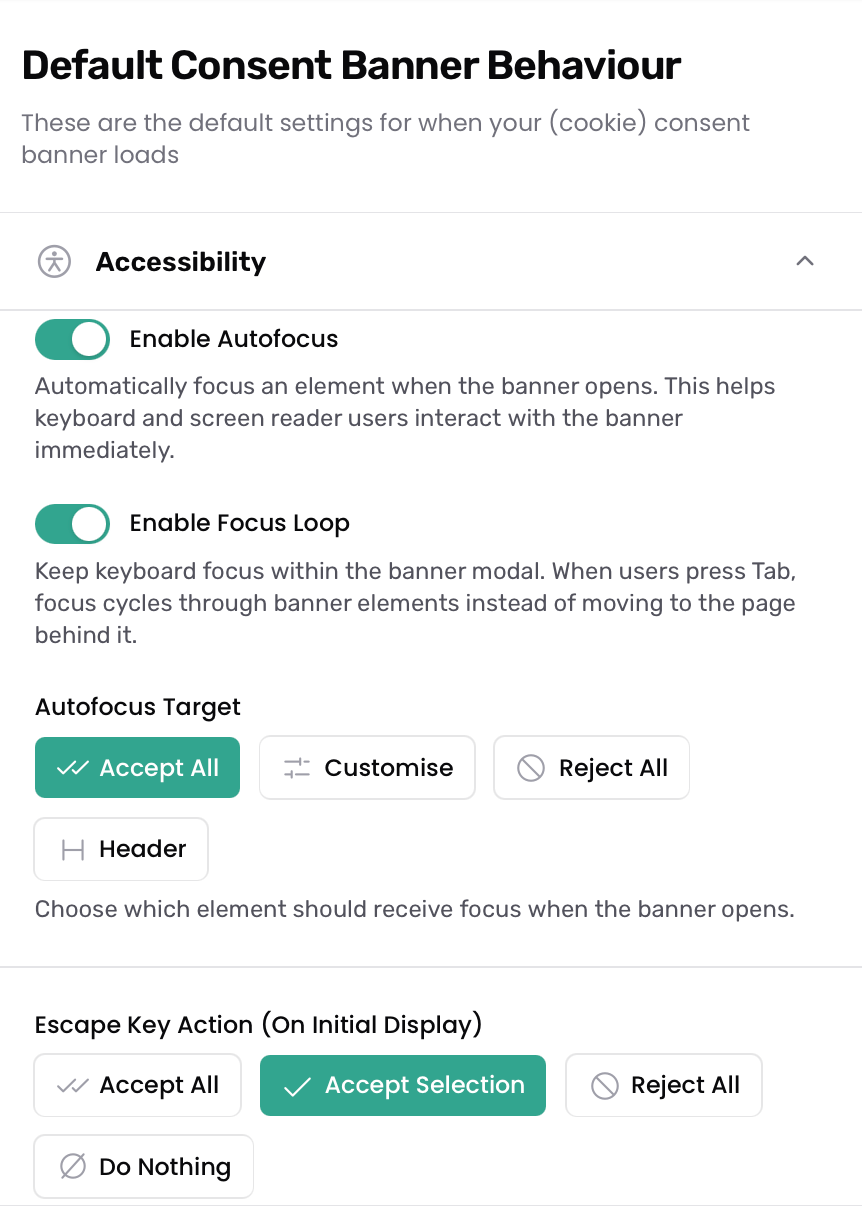
The Accessibility tab can be found on the Behaviour page, which is accessible from the Web CMP dropdown.
These are the possible values:
Accept All: Accepts all cookie categories and saves consent
Accept Selection (default): Saves consent with whatever categories are currently selected
Reject All: Only keeps functional cookies, rejects analytics and marketing, and saves consent
Do Nothing: Escape is ignored and the banner stays open
Note that changing this setting is only available to Consent Studio Professional customers and customers on custom plans. Otherwise, Accept Selection is the default behaviour, given that the consent state is not yet present.
As mentioned previously, when consent has already been provided in the past, the behaviour will be to close the main consent banner regardless of what is configured.
Still need help? Ask the team