Banner button order
Last updated About 3 hours ago
Changing the button order in the Consent Studio Web CMP consent banner
You can easily change the order of the buttons in your consent banner for Desktop and Mobile separately. This can be done in the Behaviour settings panel in the Web CMP module in Consent Studio.
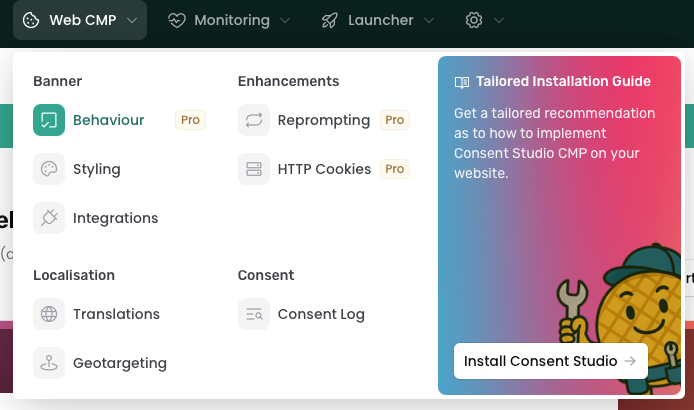
On this page, open the Banner Buttons tab and scroll down to the Button Order section.

For either device, you can re-arrange the order as desired by dragging and dropping the buttons.

On phones, you can also give any button a row of its own. Next to each button under Mobile Button Order there is a widen icon. Switch it on and that button spans the full width of the banner, while the buttons around it stay side by side. For example, put Accept all first and widen it so it sits on top, with Reject all and Accept selection next to each other underneath.
Switch the editor preview to Mobile to see the result straight away. This option is available on the New (beta) engine. Existing banners keep their current layout until you change it; new domains start with every button on its own row.
Buttons that are not currently enabled in your consent banner will be greyed out although their order can still be changed for in the future.
Do not forget to Save & Publish your changes after having made this modification.
Was this helpful?
Still need help? Ask the team