How to disable consent category toggles and descriptions for empty categories
Simplify your banner by disabling empty consent categories
Last updated 12 days ago
This feature is optional and it is totally up to you whether you enable it. It is disabled by default.
Hide empty consent categories inside your (cookie) consent banner
Context
Consent Studio is built around three core categories of tracking technologies (and therefore, three categories of consent):
Functional
Analytics
Marketing
There are scenarios in which you are by law not allowed to use marketing cookies or where you simply do not use them. This could be the case when you act as or on behalf of a government body, like a municipality, or a organisation that processes sensitive personal data, such as a hospital, municipality or a religious institution. Or perhaps, you just want to make your cookie banner as simple as possible.
How to hide empty consent categories
First, log in to Consent Studio. You can use the button below.
If you have access to managing multiple sites from your account, make sure that you are editing the correct site. You can switch sites from the site menu in the top left corner of your screen. More information about managing multiple sites and switching between them can be found here.
In the navigation menu, open the Web CMP dropdown and open the Behaviour panel.

On the Behaviour page, open the Tracking Technologies tab and enable the Hide Categories Without Tracking Technologies setting.
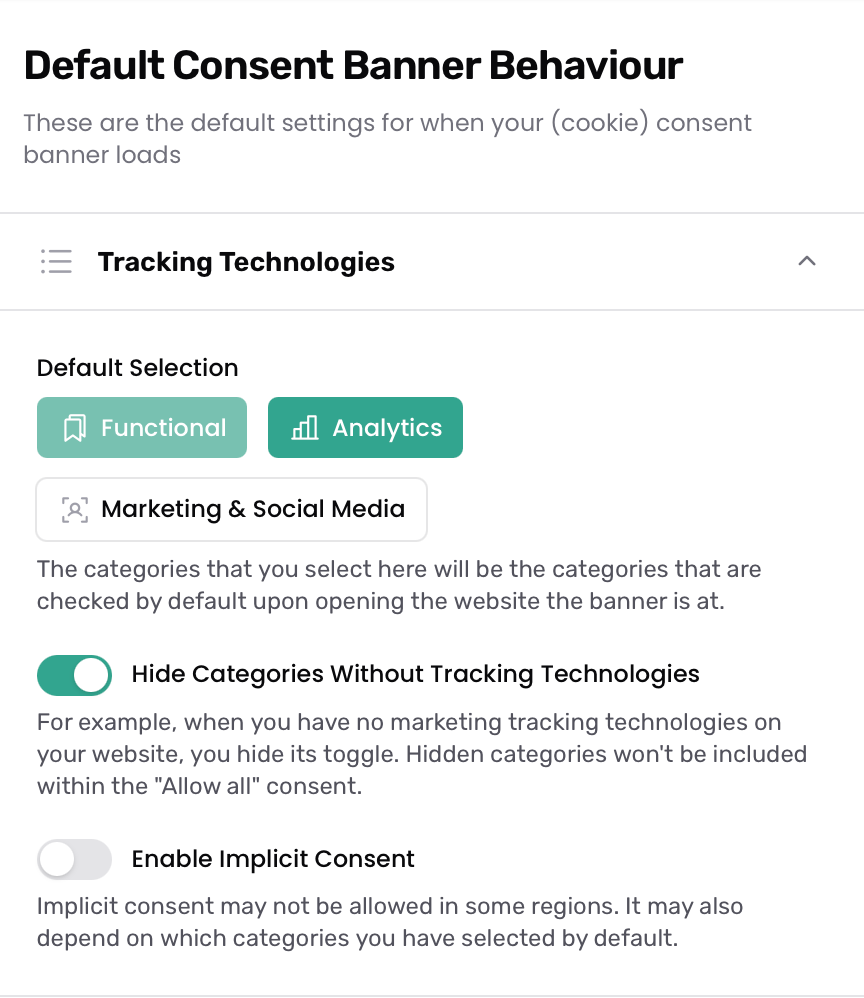
Enabling this setting will have the following effects:
A category’s toggle in the primary screen of the consent banner will be hidden when it does not contain any registered tracking technologies.
A category’s explanation and list section in the overview screen of the consent banner will be hidden when it does not contain any registered tracking technologies.
A category will not be automatically consented to when the toggle for Enable Implicit Consent is enabled.
It is of vital importance that Consent Studio’s access to your website remains guaranteed and that the scanner can access the tracking technologies on your website. When it fails to do so and tracking technologies that haven’t been found during a new scan will be removed automatically from your tracking technologies list. With the Hide Categories Without Tracking Technologies setting enabled, this may prevent new/first-time visitors on your website from providing consent at all for any category other than Functional.
Once confident and satisfied with your changes, click Save & Publish to enqueue your changes for publication on our CDN.
